Can you export leads from Sales Navigator? Not with LinkedIn's own tools. LinkedIn's help centre says Sales Navigator doesn't offer a way to export leads or accounts to a CSV or Excel file, on any plan. The only built-in option is CRM sync, which needs the Advanced Plus plan.
What you can do is export with a Chrome extension that works inside Sales Navigator. This guide covers:
- every way to get leads out of Sales Navigator, and when to use each;
- step-by-step exports for searches, lead lists, account lists and single profiles;
- exactly what's in the file;
- how to export more than LinkedIn's 2,500-lead limit;
- what to do after you export, and how to fix the usual problems.
4 ways to export leads from Sales Navigator
| Method | What you get | Limits | Cost |
|---|---|---|---|
| Copy and paste by hand | Whatever you copy into a spreadsheet | Slow and error-prone; fine for a dozen leads | Free |
| CRM sync | Leads and contacts created in Salesforce, HubSpot, Microsoft Dynamics 365 or Oracle Sales | Advanced Plus plan only | Custom quote from LinkedIn |
| LinkedIn's data export | Your own first-degree connections | Only people you're connected to, not search results | Free |
| A Chrome extension like LeadExportr | Every lead in a search or list, as CSV or Excel, with verified emails | LinkedIn's limit of 2,500 leads per search | Free to start |
For most people, the extension is the only practical way to export a search. The rest of this guide shows how, then covers the data export for connections.
What you need
- A Sales Navigator account, on any plan, including the free trial.
- The free LeadExportr Chrome extension.
- A LeadExportr account. The free plan covers 3 pages (75 leads) per export, so you can try it on a real search.
How to export a Sales Navigator search to CSV
- Run your search in Sales Navigator and let the results load.
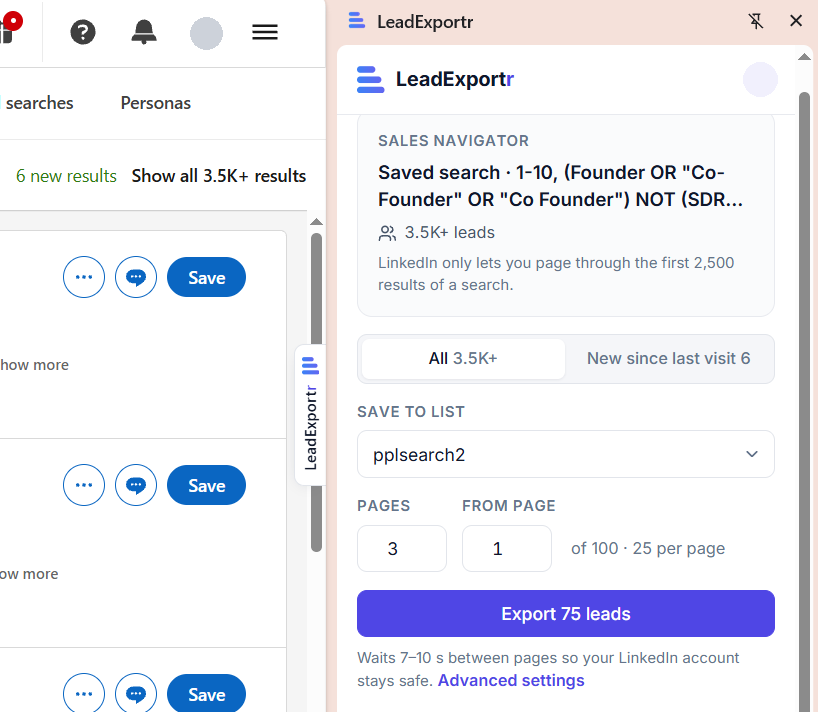
- Open LeadExportr. Click the thin LeadExportr tab on the right edge of the page. It opens a side panel that shows your search and how many leads it has.
- Pick a list under Save to list, or choose New list at the bottom of the menu. This is where the leads will be saved.
- Choose how many pages to export. Each page holds 25 leads, and the panel shows how many pages the search has, up to LinkedIn's 100. Leave From page at 1 unless you're picking up where you left off.
- Click Export. The button shows how many leads you'll get, such as "Export 75 leads".
LeadExportr then goes through the pages for you. It waits 7 to 10 seconds between pages, the way a person browses, and shows its progress as it goes. You can pause or stop at any time. Keep the LinkedIn tab open until it finishes; you can close the panel and work in another tab.
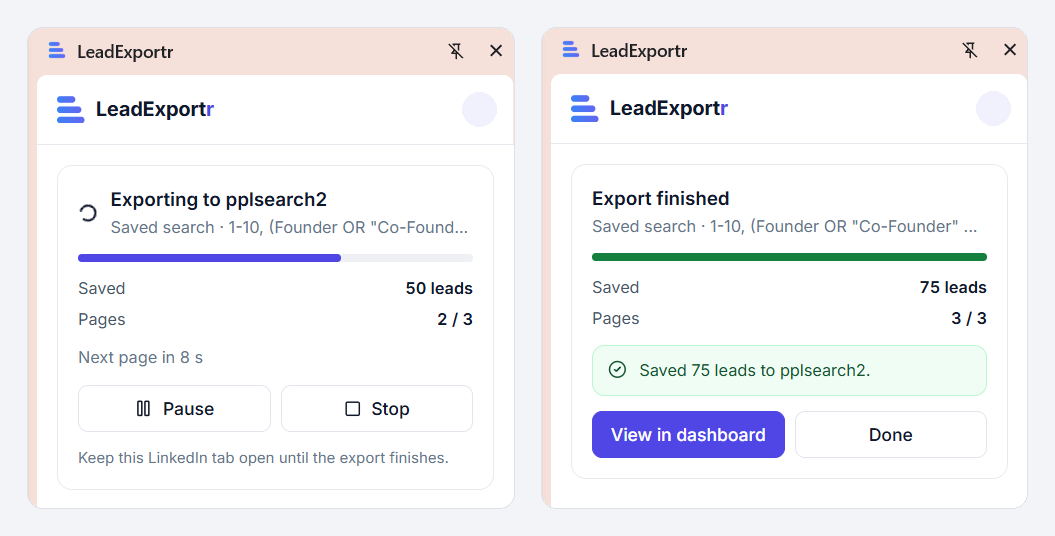
- Open your list. When it's done, click View in dashboard.
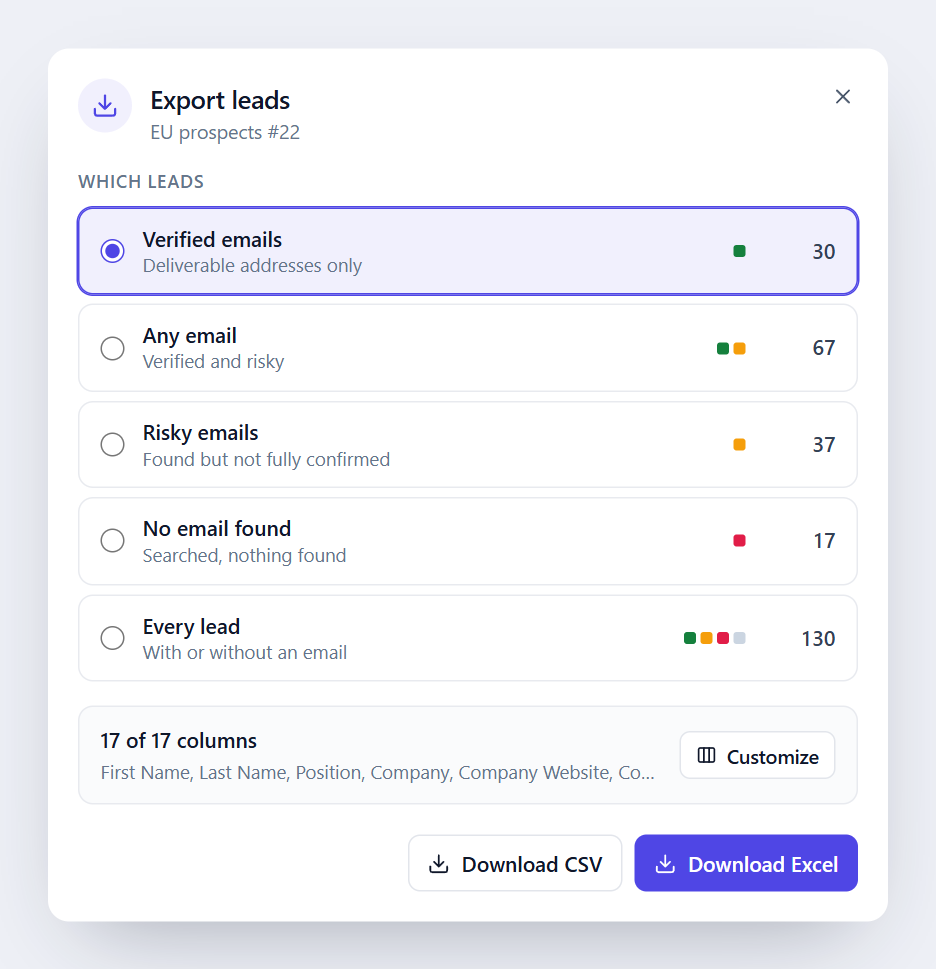
- Download it. Open the list, click Export, choose which leads to include, then Download CSV or Download Excel.
A full search of 2,500 leads takes roughly 15 to 20 minutes, because of the pause between pages.
What's in the export
Every lead comes out with these columns:
| Group | Columns |
|---|---|
| Person | First Name, Last Name, Position, LinkedIn (profile URL), Sales Nav (Sales Navigator URL) |
| Company | Company, Company Website, Company Domain, Company LinkedIn |
| Company details | Industry, Company Size, HQ Location, Founded. These fill in fully when you run company enrichment |
| Email, Email Status (verified, risky or not found), Email Provider | |
| Your workflow | Status, a column you can set yourself, such as "Contacted" |
Not every tool needs every column, so the export dialog has presets under Customize:
- Email outreach: email, name, company, website, job title and LinkedIn URL, ready for tools like Smartlead, Instantly or lemlist.
- LinkedIn Campaign Manager: the columns LinkedIn asks for when you upload a contact list for Matched Audiences ads.
- Contact list: just name, email, company and position.
Your column choices are saved for next time.
How to export a lead list from Sales Navigator
Saved lead lists work the same way:
- Open Lists in Sales Navigator, then Lead lists, and open the list.
- Open the LeadExportr panel. It shows the list and how many leads are in it.
- Pick a destination list, set the pages and click Export.
Sales Navigator lists hold up to 1,000 leads each, so most lists export in one run.
How to export an account list
Account searches and account lists export the same way. The panel counts companies instead of leads, and saves companies instead of people. LinkedIn shows up to 1,000 account results per search, across 40 pages.
Exporting accounts is useful for building a target account list for your CRM or for ads. To reach people at those companies, run a lead search filtered by the account list and export that.
How to export a single LinkedIn profile
You don't need Sales Navigator for this. It works on regular LinkedIn profiles too:
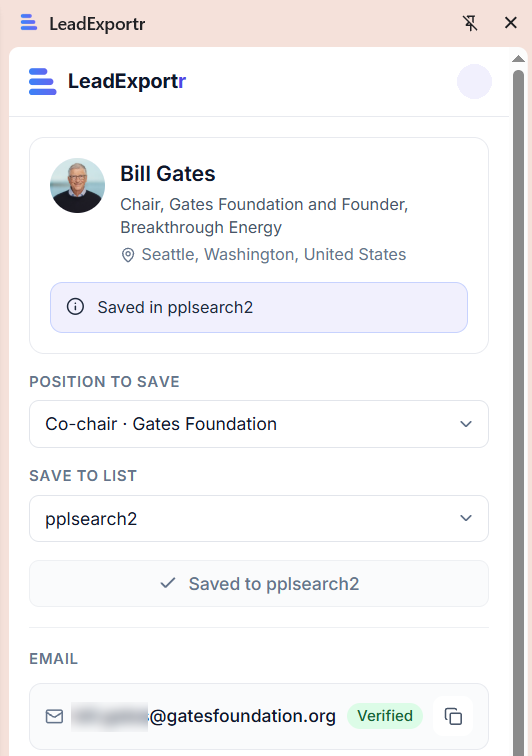
- Open someone's profile and click the LeadExportr tab. The panel shows who they are and where they work. If they have more than one job, pick the one to save under Position to save.
- Pick a list under Save to list and click Save lead.
- Click Find email. LeadExportr checks Enrow, then Icypeas and Datagma, and verifies what it finds with BounceBan. Only verified emails use a credit.
How to export more than 2,500 leads
LinkedIn shows at most 100 pages of 25 results for any search, so no tool can export more than 2,500 leads from a single search. The way around it is to split a big search into smaller ones that don't overlap.
Say "VP of Sales, software companies, United States" returns 8,800 results. Split it by one filter until each part is under 2,500. Company headcount works well:
| Slice | Results |
|---|---|
| Company headcount 11–50 | 2,100 |
| Company headcount 51–200 | 2,400 |
| Company headcount 201–500 | 1,900 |
| Company headcount 501–1,000 | 1,300 |
| Company headcount 1,001+ | 1,100 |
Export each slice into the same list. Company headcount, seniority and geography all make good splits, because each lead only falls into one slice. Save every slice as a saved search, so you can export new matches later.
How to export only new leads from a saved search
Saved searches keep your pipeline full. Sales Navigator tracks which people are new since you last opened a saved search, and LeadExportr can export just those:
- Open the search from Saved searches in Sales Navigator.
- In the LeadExportr panel, choose New since last visit. It shows how many new leads there are.
- Pick your list and click Export.
If you open the search from LinkedIn's "new results" link, the panel picks New since last visit for you. Run your saved searches every week, and each export adds only the people who joined them since your last look.
After you export: emails and outreach
An export gives you people. To contact them:
- Find their emails. Open the list and click Find emails. LeadExportr tries Enrow, then Icypeas, then Datagma until one finds each email, and BounceBan verifies every one. Only verified emails use a credit.
- Export for your sending tool. Download with the Email outreach preset and import the file into your email tool.
- Or skip the file. Push to API sends the list straight into a Smartlead campaign, or to any tool with an API.
- For your CRM, download the CSV and use your CRM's import tool. HubSpot and Salesforce both import contacts from CSV and let you match the columns.
Our guide to extracting emails from LinkedIn in bulk covers the email step in more detail.
How to export your LinkedIn connections
LinkedIn does let you download your own first-degree connections:
- Click Me, then Settings & Privacy, then Data privacy.
- Under "How LinkedIn uses your data", click Download your data.
- Choose Connections and click Request archive.
LinkedIn emails you when the file is ready. That can take from a few minutes to a day or two, and the download link lasts 72 hours. The file, Connections.csv, has each connection's name, profile URL, company, position and the date you connected. It includes an email address only when that connection has allowed it in their privacy settings.
To get emails for the rest, upload the file to LeadExportr under Import data, then click Find emails.
Troubleshooting
"Can't export this page." The panel exports whatever the tab is showing. Open a Sales Navigator search, saved search or list, and the panel updates.
"Sales Navigator didn't allow this request." Make sure you're signed in to Sales Navigator in that tab, reload the page and try again.
"Reload this LinkedIn tab." LeadExportr was installed or updated after the page opened. Reload the page and the panel connects.
"An export is already running in another LinkedIn tab." LeadExportr runs one export at a time. Let it finish, or stop it, then start the next one.
"Free plan exports up to 3 pages at a time." The free plan exports 3 pages, 75 leads, per run. Paid plans export full searches.
The export stopped early. If you stopped it or it hit an error, the panel offers Continue from page with the next page number, so you pick up where it left off. "Reached the end of the results" means there were no more pages to export.
Fewer leads were saved than the button showed. The panel lists them under Skipped: people who appeared twice in the same export, and hidden or nameless profiles that LinkedIn doesn't share.
A warning about 2,500 leads a day. LeadExportr counts what you export each day and suggests staying under 2,500 leads to keep your LinkedIn account safe. It's a warning, not a block.
Some leads have no email. Not every email can be found. Leads with no company or domain are skipped, and a search that found nothing isn't charged.
Tips for cleaner exports
- Build the search before you export. The Sales Navigator filters guide covers which filters find the best leads.
- Keep each export to one audience, so the list maps to one campaign.
- Re-run saved searches for new leads. Choose New since last visit to export only the people who are new to the search (see above).
- Keep a human pace. LeadExportr waits 7 to 10 seconds between pages by default. You can raise the delay under Advanced settings; lowering it isn't worth the risk to your account.
- Export verified emails only when the list goes straight into an email tool. It keeps your bounce rate down.
Frequently asked questions
Can you export leads from Sales Navigator to Excel?
Not natively. LinkedIn doesn't offer a CSV or Excel export in Sales Navigator on any plan. With the LeadExportr extension you can export a search or list into your dashboard, then click Download Excel.
Can you export a lead list from Sales Navigator?
Yes, with an extension. Open the list in Sales Navigator, open the LeadExportr panel, pick a list and click Export. Lists hold up to 1,000 leads, so most export in one go.
Can I export saved searches in Sales Navigator?
Yes. Open the saved search, then export it like any other search. When you come back to it, choose New since last visit to export only the new results.
How many leads can I export from Sales Navigator?
LinkedIn shows up to 2,500 lead results per search, across 100 pages, and 1,000 account results across 40 pages. You can export all of them. For bigger markets, split the search into smaller ones by region, company size or seniority.
How long does it take to export 2,500 leads?
Roughly 15 to 20 minutes. LeadExportr pauses 7 to 10 seconds between each of the 100 pages, the way a person browses, and it keeps going while you work in another tab.
Can I export Sales Navigator leads for free?
Yes, on a small scale. The LeadExportr extension and free plan export 3 pages, 75 leads, at a time and include 15 verified emails. Paid plans export full searches.
How do I export Sales Navigator leads to HubSpot or Salesforce?
Advanced Plus syncs with both natively. On Core or Advanced, export your leads with LeadExportr, download the CSV, and import it with your CRM's contact import tool.
Does Sales Navigator have a CRM export?
Only on Advanced Plus, which syncs with CRMs including Salesforce, HubSpot, Microsoft Dynamics 365 and Oracle Sales. Core and Advanced have no export at all.
Does the export include email addresses?
Sales Navigator doesn't show email addresses, so an export gives you names, titles, companies and profile links. LeadExportr then finds each lead's work email and verifies it, and only verified emails use a credit.
Is exporting from Sales Navigator safe for my account?
LeadExportr works inside your own Sales Navigator session and paces itself like a person browsing, waiting 7 to 10 seconds between pages and staying within LinkedIn's own result limits. It also warns you before you pass 2,500 exported leads in a day. No tool can promise LinkedIn will never restrict an account, so keep the pace human and the volumes reasonable.