LinkedIn doesn't hand out email addresses. You'll only see one in "Contact info" if the person is a first-degree connection and chose to share it. So extracting emails from LinkedIn in bulk takes two steps: export the people you want, then look up each person's work email from their name and company, and verify it.
This guide does both with a free Chrome extension, for a Sales Navigator search of up to 2,500 leads, a lead list, or a CSV file you already have.
What you need
- A list of people. A Sales Navigator search or lead list works best. A CSV or Excel file with first names, last names and companies works too.
- The LeadExportr Chrome extension. It's free and adds a "LeadExportr" tab to LinkedIn and Sales Navigator.
- A LeadExportr account. The free plan includes 15 verified emails, so you can test it on a real list first.
Step 1: Export the people from Sales Navigator
- Run your search in Sales Navigator and let the results load.
- Click the LeadExportr tab on the right edge of the page to open the side panel.
- Choose a list under Save to list, or pick New list and give it a name.
- Set Pages. Each page holds 25 leads, so 100 pages covers LinkedIn's limit of 2,500 results per search.
- Click Export.
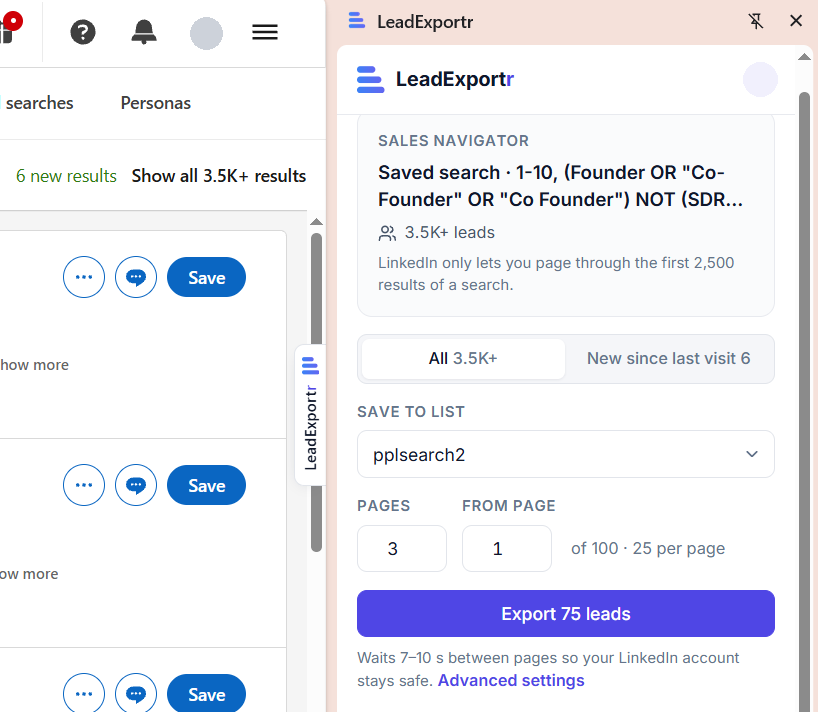
LeadExportr pages through the results on its own, pausing 7 to 10 seconds between pages like a person browsing. When it's done, the panel says how many leads it saved, with a View in dashboard button.
Saved lead lists and account lists in Sales Navigator work the same way. On the free plan, each run covers up to 3 pages.
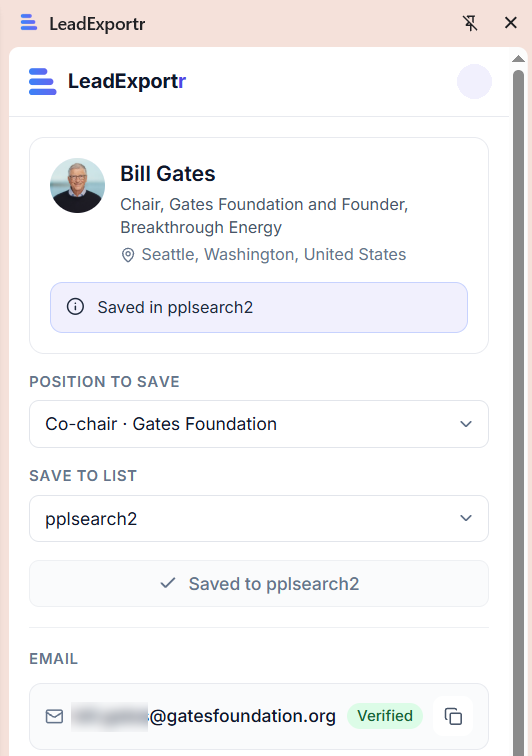
Not using Sales Navigator? Open any LinkedIn profile, click the LeadExportr tab, pick a list and click Save lead. Then click Find email to get their email on the spot. That's slower for a big list, but fine for a few dozen people.
Step 2 (optional): Upload a list you already have
If your leads come from a CRM, an event or a spreadsheet, skip LinkedIn entirely:
- In the dashboard, open Import data.
- Drop in a CSV or Excel file.
- Match the columns. First name and last name are required, plus a company name or company domain. LeadExportr guesses the matches from your headers.
- Name the list and click Import.
Step 3: Find the emails
- Open the list in your dashboard.
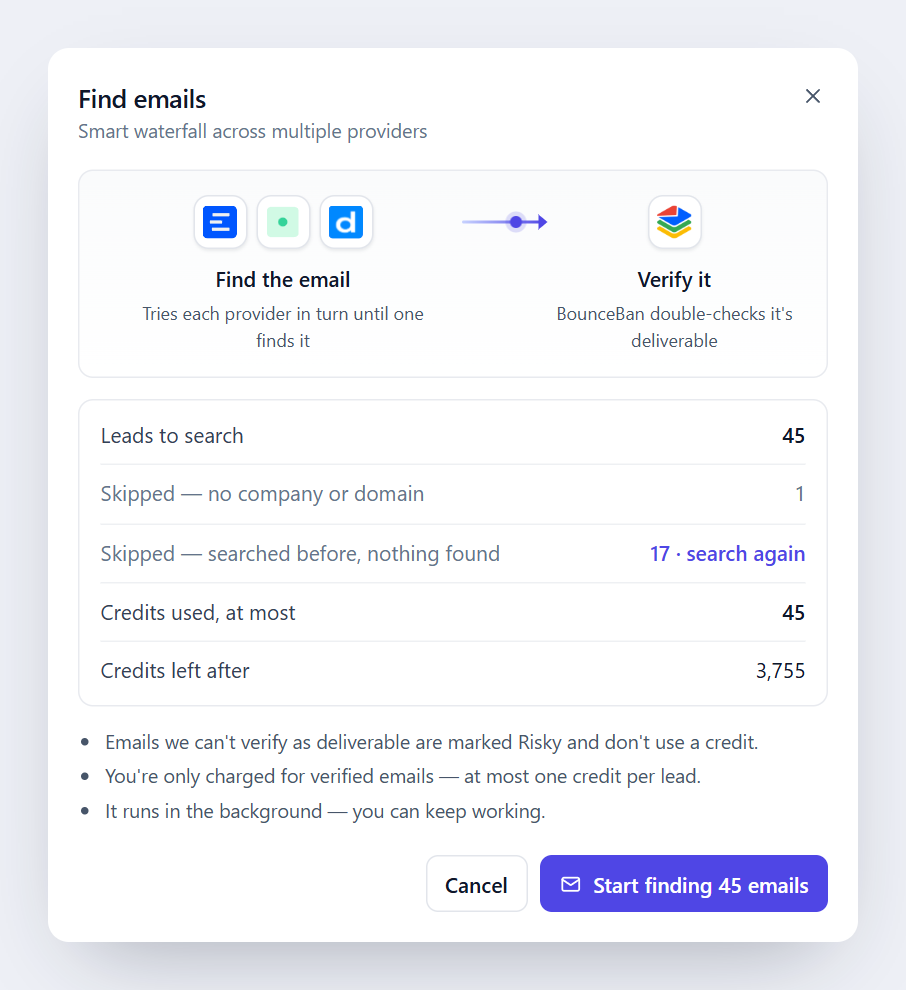
- Click Find emails. The dialog shows how many leads will be searched and the most credits it can use.
- Click Start finding emails.
It runs in the background, so you can close the tab. For each lead, LeadExportr asks Enrow first. If Enrow has no match, it tries Icypeas, then Datagma. Each provider only searches the leads the one before it missed, which is why a waterfall finds more emails than any single provider.
Every email the providers find is then checked by BounceBan before it reaches your list.
Step 4: Download your list
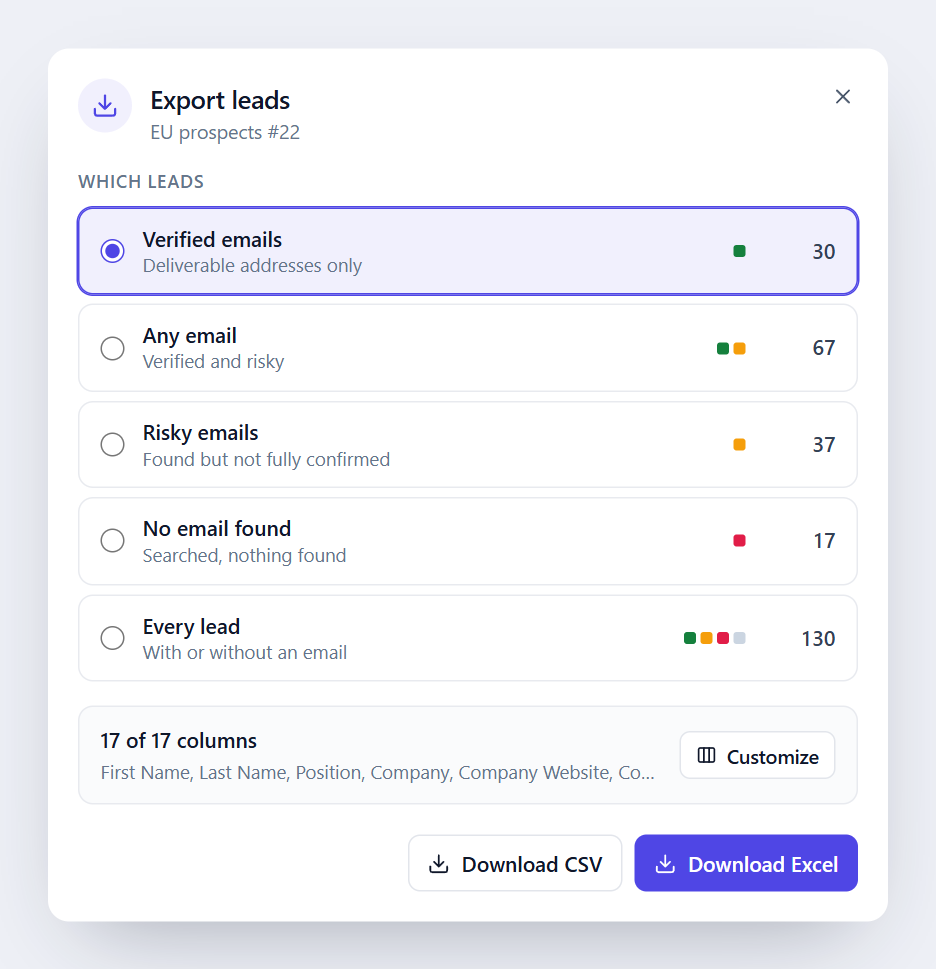
- Click Export at the top of the list.
- Choose which leads to include. Verified emails is the default and the safest for outreach.
- Pick your columns, or use the Email outreach preset.
- Click Download CSV or Download Excel.
If you send with Smartlead, Push to API adds the leads straight into a Smartlead campaign instead.
How accurate are the emails?
Each lead ends up with one of three results:
| Result | What it means | Use it? |
|---|---|---|
| Verified | Found by a provider and confirmed deliverable by BounceBan | Yes |
| Risky | Found, but the company's mail server accepts every address, so nobody can confirm the inbox | With care, in small batches |
| Not found | No provider had a match | No |
Only verified emails use a credit. Risky and not-found results are free.
Other ways to get emails from LinkedIn
- Your own connections. LinkedIn's data export (Settings & Privacy, then Data privacy, then "Download your data") includes a connection's email address only if they've allowed connections to download it. We cover it in our guide to exporting from LinkedIn.
- One person at a time, by hand. Check their Contact info, guess the email from the company's pattern, then run it through an email verifier. It works for a handful of people, not hundreds.
Frequently asked questions
Can you extract emails from LinkedIn?
Not directly. LinkedIn only shows an email in Contact info to first-degree connections, and only if the person shares it. To get emails for anyone else, export the people, then use an email finder that looks up each work email from their name and company, and verifies it.
Can I extract emails from LinkedIn for free?
Yes, for a small list. The LeadExportr extension is free, and the free plan includes 15 verified emails and 75 saved leads. Paid plans start with 500 verified emails a month.
How many emails can I extract at once?
One Sales Navigator search can return up to 2,500 leads, and finding their emails is one click for the whole list. How many come back verified depends on the people and companies on your list.
Do I need Sales Navigator?
No. Sales Navigator is the fastest way to build a big list, but you can also save profiles one by one from regular LinkedIn, or upload a CSV or Excel file.
Why are some emails marked risky?
Some companies set their mail servers to accept every address, which is called catch-all. Nobody can confirm whether a specific inbox exists there, so those emails are marked risky instead of verified. They don't use a credit.
Is it safe for my LinkedIn account?
LeadExportr works inside your own Sales Navigator session and paces itself like a person browsing, waiting 7 to 10 seconds between pages and staying within LinkedIn's 2,500-result limit. No tool can promise LinkedIn will never restrict an account, so keep the pace human and the volumes reasonable.